
Common Questions
What is the best way to navigate this site?
Everyone will use the site in their own way. Clicking on the "My Courses" tab will return you to the courses that you have purchased and you can go from there. Select the How to use tab at the top of this page for instructions on navigating the site.
I paid for a course and have returned to the PayPal page.
It takes a few moments for your payment to be cleared. Please wait a few moments and then click the "My Courses" tab even if you are on the PayPal page.
When I click the "My Courses" tab, I go to an empty "My courses" page.
This is because you are using guest access. You must log in to access your free or paid-for courses.
I have forgotten my password.
On the login screen, click "Forgot your username or password?" We will send you an email to help you reset your details. Keep your login details stored safely.
I am using the correct details and cannot log in.
The most common reason for this is because Caps Lock is switched on. If the problem persists, please contact us at online@learningtogether.co.uk.
I want to change my email address.
Open your user menu at the top right of the screen, select your profile and choose to edit your profile. You can change your email address there. If you still have issues, please contact us at online@learningtogether.co.uk and our admin department will assist you.
I want to change my password.
Open your user menu at the top right of the screen and look under Preferences for the Change password option. If you cannot find this option or still have issues, please contact us at online@learningtogether.co.uk and our admin department will assist you. Keep your new password stored safely.
I cannot see the menu tabs.
On a mobile phone, tablet or smaller screen, the navigation may be collapsed. Look for the menu button with horizontal lines near the top of the page and select it to open the menu.
Is my child in a safe online environment?
We have made this site as safe as possible, but be aware that your child is on the internet and may leave this site to visit other sites. Parental supervision is always recommended.
Does this site use cookies?
Yes. Cookies are small data files which are saved on your computer as you use a website — they make the site run in an interactive way. Some features are only available if these functionality cookies are enabled. We use Google Analytics cookies to track and measure website performance — the data that is collected is anonymous and we only use it to monitor and improve this website. (It is never shared with any third party.) You are free to reject these cookies through your web browser, although this may impair certain features of the site. To find out more information about the cookies we use, please read our Terms and Conditions policy.
Which internet browser do I need?
To get the best experience of using www.onlineelevenplusexams.co.uk, we recommend the latest version of one of the following web browsers:
- Google Chrome
- Firefox
- Safari
- Microsoft Edge
Other internet-connected devices can also be used to run our site. However, we cannot be certain that your experience will be the same on all devices, and in some cases these devices may prevent you from using the site. For the best experience, ensure that JavaScript and cookies are enabled in your browser.
Where can I log in?
You can use the login section at the top right of this website or visit the login page.
I think there is an error in a question.
This is a very extensive site with thousands of questions. Quality assurance is stringent. If you think there is an error in a question, we would be grateful if you would email us all the details at online@learningtogether.co.uk so that we can correct the problem.
What is the difference between a test, a quiz and a practice?
All names refer to the set of questions that the child will attempt. The name "quiz" appeals to many children, so they will see the word "quiz" most often.
What is the difference between a Mark and a Grade?
A Mark refers to the number of questions. A Grade refers to the maximum possible score. Some questions require more than one answer, so you might see Marks/10 and Grade/20 followed by the child's score. In this case, there are two answers required for each question.
How long does my subscription last?
You can subscribe for 1 month (rolling contract), 3 months, 6 months or for 1 year. All four subject areas are sold together as part of the Complete 11 plus Course. Rolling contracts can be terminated in your PayPal account or by contacting us.
I cannot see any feedback for a question.
If your child has not attempted the question, they will not see any feedback. Blank or empty responses are marked as wrong and do not provide feedback. If your child has given an answer to a question that requires two or more answers, move the mouse pointer over the answer to obtain feedback. This system encourages the child to try and provide an answer rather than guess.
I think there is a broken link in the site.
This is a large and exciting site. If you think there is a broken link, we would be grateful if you would email us details at online@learningtogether.co.uk so that we can correct the problem.
What reports can I see?
Select the How to use tab at the top of this page for instructions and screenshots.
There are so many question types — how will I know when my child has done enough work on one particular question type?
On your "My Courses" page, you can see how many times the child has attempted a particular question type. We have also added a small progress box on the quizzes page which you or your child can check to show that they feel confident with this question type. This is a visual reminder, and the quiz can be retaken and the box unchecked at any time.
How to use this site
Logging in
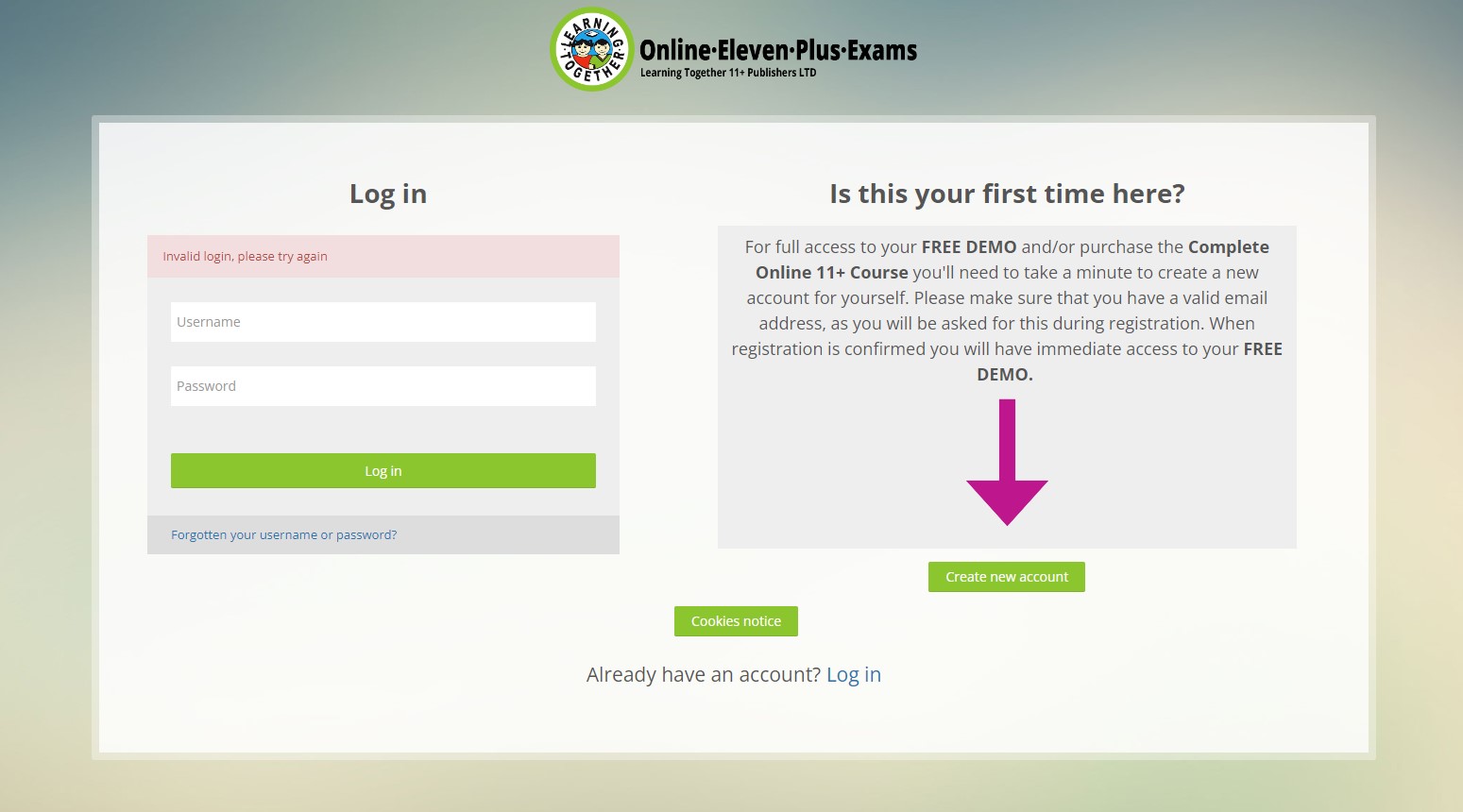
The first time you log in, you will see this screen. You will need to create a password following the instructions. Your password is case-sensitive.
My Courses
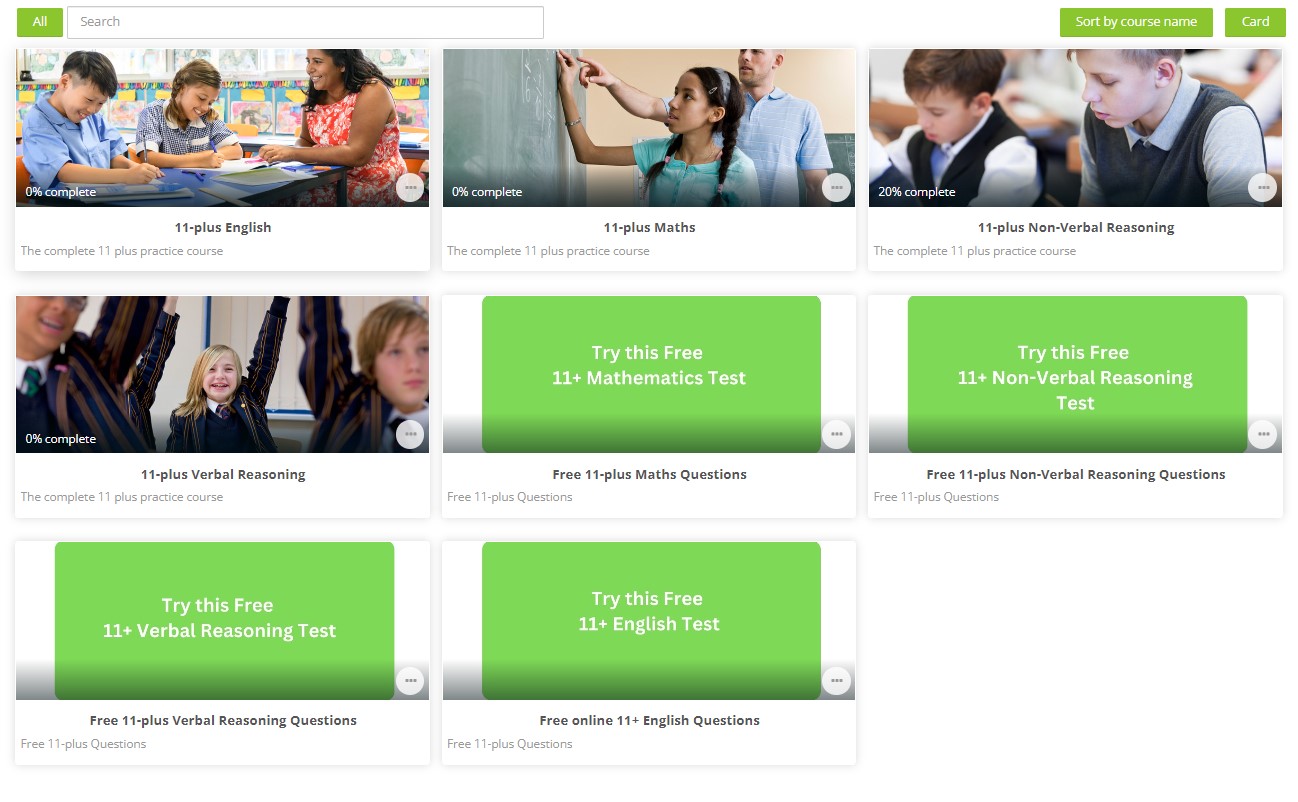
After buying a Complete 11 plus course, you will see this My courses screen detailing the four courses that you have subscribed to. Clicking on the course image or course title will take you directly to the Course Page, which gives a brief overview of the contents of the course and access to all the practice tests.
To take a practice test
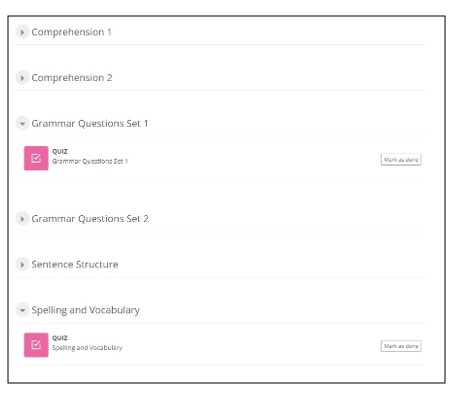
Click the course image or title and you will be taken to a screen like this. This screen will allow your child to take a practice test for the first time, reattempt the question type or return to a practice that was not finished. When you feel that your child has mastered a particular skill, you can select "Mark as done".
Review your last attempt or take another test
Clicking the course image or title will take you to the course screen, allowing you to take another similar quiz or review each individual practice test.
In the navigation panel at the top left of the screen, correct answers are shown in green and incorrect answers are shown in red. You can review each question individually or see all questions on one page. Clicking the question number will allow you to move around within the practice, reviewing each question.
Time remaining
When a practice is being timed, a digital counter showing how long is remaining will appear at the right-hand side of the Quiz panel. Only when a question has been attempted and marked will professional and relevant feedback be provided to support and develop learning. Unanswered questions do not send feedback.